Everyday money
Categories and rules
Organise spending and income into categories, and write rules that file transactions, rename payees and split them between people.
Categories say what money was for. Rules file transactions into them for you. Both belong to the pool, so everyone in it shares the same set.
Categories#
Every new pool starts with a set of everyday categories, like Income, Home, Utilities and Food & drink, each with subcategories. Change them under Settings › Categories.
Categories go two levels deep: a parent and its subcategories. Reports roll subcategories up into their parent. Each parent is one of three types:
- Spending
- Income
- Transfers, for money moving between your own accounts. There’s only one, and it can be renamed but not archived or deleted.
The number on each row is how many transactions are filed there. Click it to see them.
Adding and changing categories#
- New category adds a parent. Pick Spending or Income as its type.
- Add subcategory (in a parent’s ⋯ menu) adds one underneath.
- Rename changes the name everywhere.
- Archive hides a category from the pickers without touching its transactions. Restore brings it back.
Deleting a category#
Choose Delete… from its menu. If transactions are filed there, pick where to move them, or leave them uncategorised. Rules and remembered merchants move across too. Deleting a parent deletes its subcategories as well.
Essential or lifestyle#
Each spending category is either Essential (rent, groceries, power) or Lifestyle (eating out, holidays). The badge on its row shows which. Click it to change it, or choose Use the default to go back. The health check and the year by year chart on the reports page use this split.
Rules#
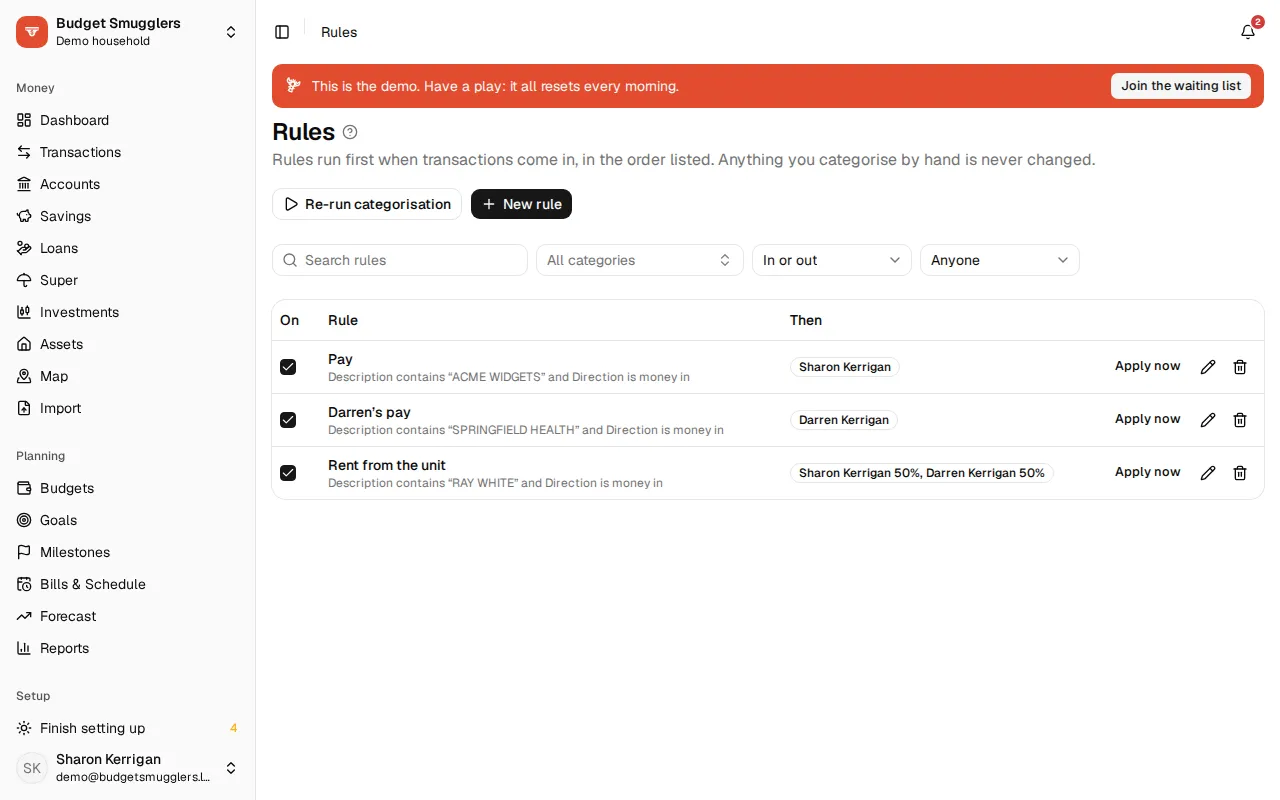
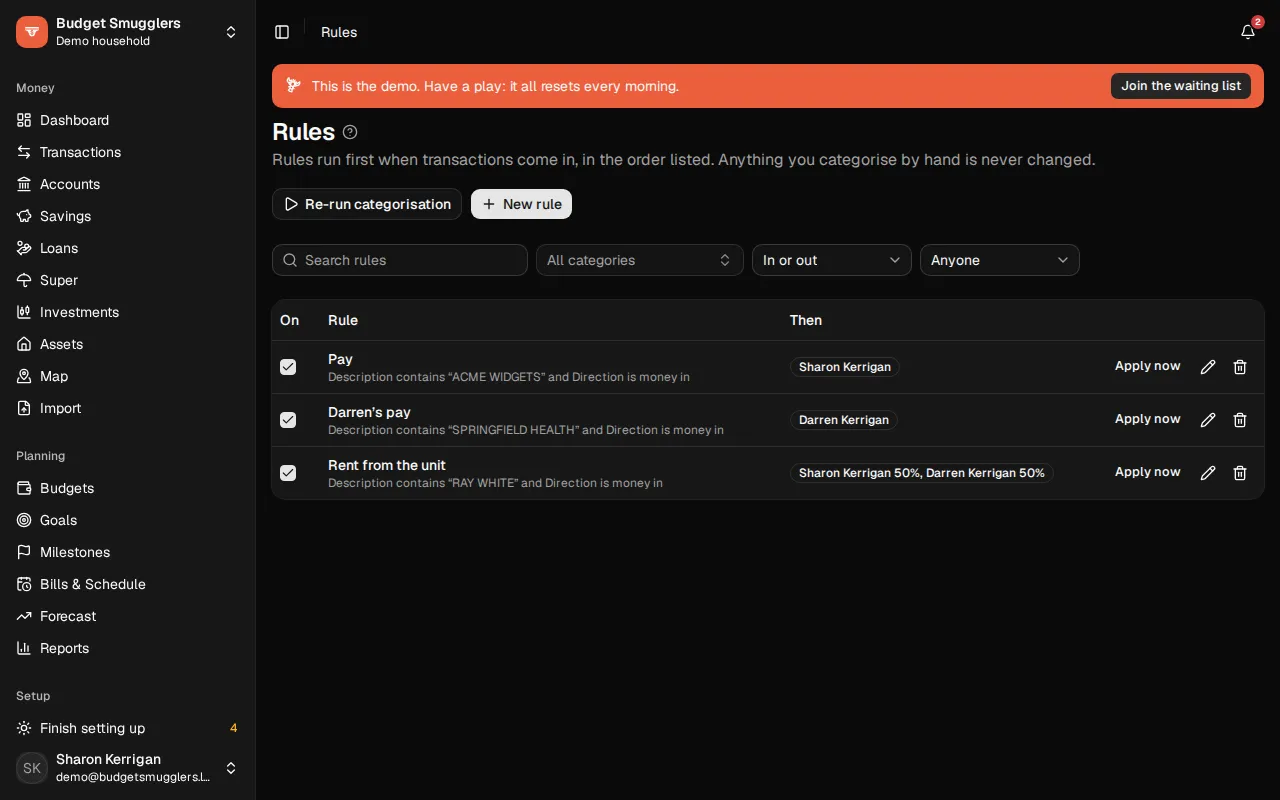
Open Rules in the sidebar. A rule says “when a transaction matches this, do that”. Rules run first when transactions come in, before anything else tries to categorise them. They run in the order listed, and the first one that matches wins.
Anything you’ve categorised by hand is never changed by a rule.
Making a rule#
- Choose New rule, or Make a rule from a transaction’s details to start with its payee filled in.
- Give it a Name.
- Under When a transaction matches, pick all of these or any of these, then add conditions.
- Choose what happens: Put it in a category, and any of the optional extras below.
- Check the preview. It shows how many existing transactions match, with a sample.
- Leave Apply to existing transactions now ticked to run it over what’s already there, then choose Create rule.
Conditions#
| Field | Comparisons |
|---|---|
| Description | contains, is, starts with, matches pattern |
| Payee | contains, is, starts with, matches pattern |
| Bank’s category | contains, is, starts with, matches pattern |
| Amount | is, is more than, is less than, is between |
| Direction | money in or money out |
| Account | one of your accounts |
Text matching ignores upper and lower case. Matches pattern takes a regular expression. Amounts match regardless of sign, so “Amount is 15.99” matches a $15.99 charge. Add a Direction condition when it matters whether money went in or out. A rule can have up to ten conditions.
What a rule can do#
- Put it in: a category.
- And rename the payee to: a tidier name, like “Netflix” for “NETFLIX.COM 866-579-7172”.
- Count it as paying: link matching transactions to a loan. Money out is a repayment, money in a redraw. Only shown once you track a loan.
- Whose: give matching transactions to a person, or split them. Only shown once the pool has people. For income, add a Direction condition so spending isn’t caught too.
- Where it happened: set a place, or Nowhere in particular.
A rule needs a category, unless it does one of the other three.
Managing rules#
- Tick or untick On to switch a rule on or off without deleting it.
- Apply now runs one rule over existing transactions. It reports how many it categorised, linked to a loan, split between people or placed.
- Re-run categorisation runs every rule, plus the rest of auto-categorising, over everything that wasn’t set by hand.
- Search the list, or filter by category, direction or person.
- Deleting a rule leaves the transactions it already filed where they are.
Rules from a transaction#
When you change a category in the transactions list, the message that pops up has Create a rule. It opens a new rule with the payee and category filled in, for you to check before saving.