Everyday money
Transactions
Search, filter and edit transactions. Set categories, split them between people, add notes and places, and fix transfers.
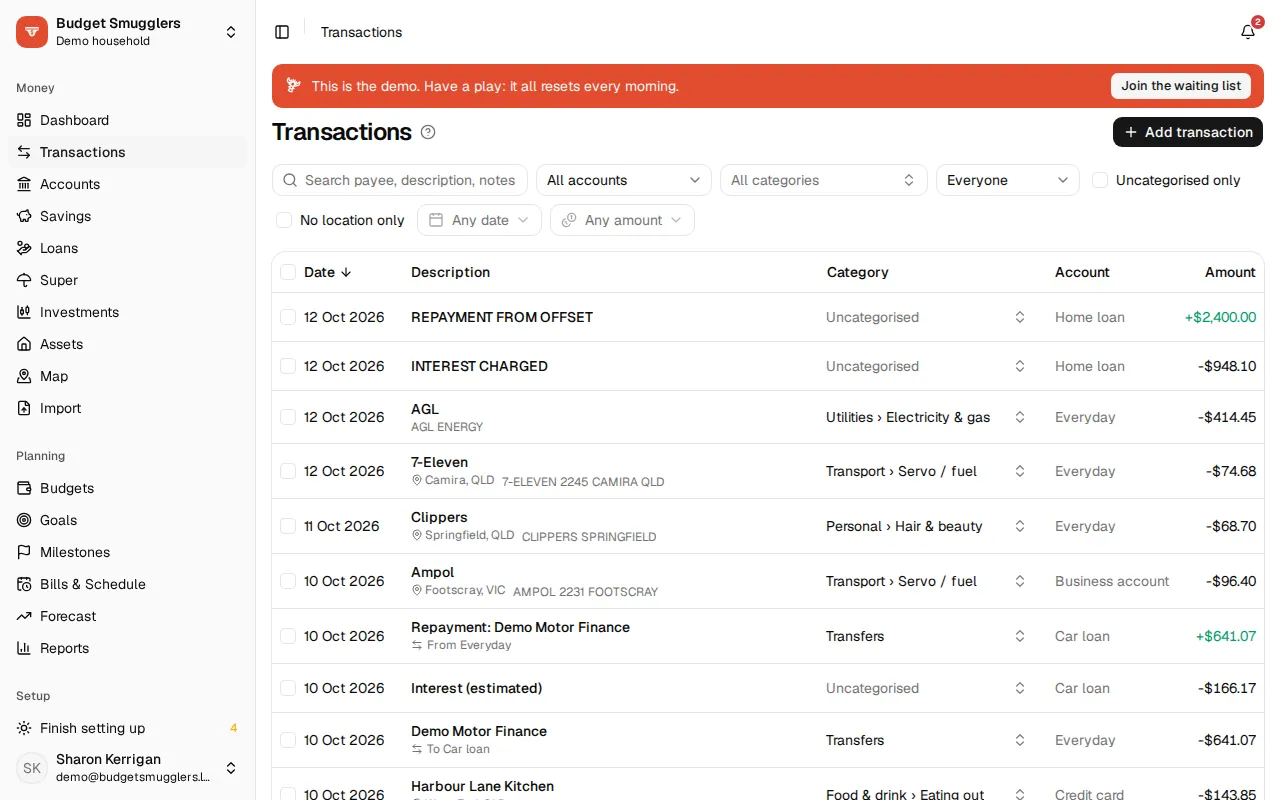
Transactions in the sidebar lists everything from every account you can see, newest first. Most come in from imports or the Sync extension. You can add your own too.
Finding transactions#
The bar above the list filters it:
- Search payee, description, notes: matches any of the three.
- All accounts: pick one account. Its list then shows a running Balance column.
- All categories: pick a category.
- Everyone: pick a person, or Shared for transactions that aren’t anyone’s. Only shown once the pool has people.
- Uncategorised only and No location only.
- A date range and an amount range.
Clear resets them all. Click a column heading (Date, Description, Category, Account, Amount) to sort by it, and again to flip the order.
Other pages link here with filters already set. Clicking a category, an import or a place takes you to just those transactions.
A Pending badge marks a transaction your bank hasn’t settled yet.
Changing a category#
Pick a new category straight from the Category column. Budget Smugglers remembers your choice for that merchant next time. The message that pops up offers two shortcuts:
- Apply to similar: give every other transaction from that merchant the same category.
- Create a rule: open a new rule filled in from this transaction.
Anything you categorise by hand stays put. Rules and automatic categorising never change it. Auto-categorising explains how the rest gets filed.
Changing lots at once#
Tick the boxes on the left, or the one in the header to select every row shown. A bar appears with the count and the total of the selected transactions. From there:
- Set category… files them all at once.
- Set whose… gives them to one person, splits them evenly, marks them Shared, or hands them back with Let rules decide.
- Set location… puts them all at one place.
Transaction details#
Click a row to open it. You’ll see the date, the account and the amount. If your bank sent its own category, it’s shown as “Bank says”.
You can change:
- Category. Tick Also apply to other transactions from this merchant to update the rest too. If it was filed automatically, it says how (by a rule, from a merchant you’ve filed before, suggested by AI and so on).
- Whose. See splitting between people.
- Where. See places.
- Payee. A cleaner name than the bank’s description.
- Notes. Anything you want. Notes are searchable.
For imported transactions, the bank description, date and amount stay as the bank sent them.
Make a rule at the bottom starts a new rule from the transaction.
Adding a transaction#
Choose Add transaction for cash spending or anything a statement won’t cover. Pick the account, date and amount (negative for spending, like -12.50), and give it a description. It’s categorised the same way as an imported one.
You can change every field of a transaction you added yourself.
Transfers#
Money moving between two of your own accounts is a transfer, not spending or income. Budget Smugglers pairs them up for you when transactions come in. It looks for:
- A payment that names one of your accounts by its Account number, with the matching amount in that account within five days.
- Otherwise, the same amount out of one account and into another within three days. Descriptions that mention a transfer win a tie.
Both halves are filed under Transfers and the list shows “To” or “From” the other account.
If it paired the wrong two, open either half and choose Not a transfer?. They become two separate, uncategorised transactions, and won’t be paired again.
Splitting between people#
Once the pool has people, the Whose field shows who a transaction belongs to. Tap a name to give it all to them, or choose Split evenly or Shared.
For an uneven split, use Add a line. Each line is a person and either an amount or a % of rest (a percentage of whatever the amount lines don’t cover). Anything not given to someone is shown as shared.
By default a transaction belongs to whoever held the account on the day, unless a rule says otherwise. Once you set it by hand, choose Let rules decide to hand it back.
Places#
The Where field shows where a transaction happened, with a small map. It’s worked out from the bank’s details or the description. Search for a place to change it, or choose Nowhere in particular. After picking one by hand, Work it out goes back to the automatic guess. Transfers don’t have a place.
Don’t want locations at all? Turn off Show locations under Settings › Profile. The map shows them all.
Deleting#
Choose Delete in the transaction’s details. A transaction you added yourself is gone for good. One that came from an import comes back if you import that statement again.