Wealth
Loans and offsets
Track home, car and personal loans, see when they'll be paid off and what your offset saves, and record refinances and family loans.
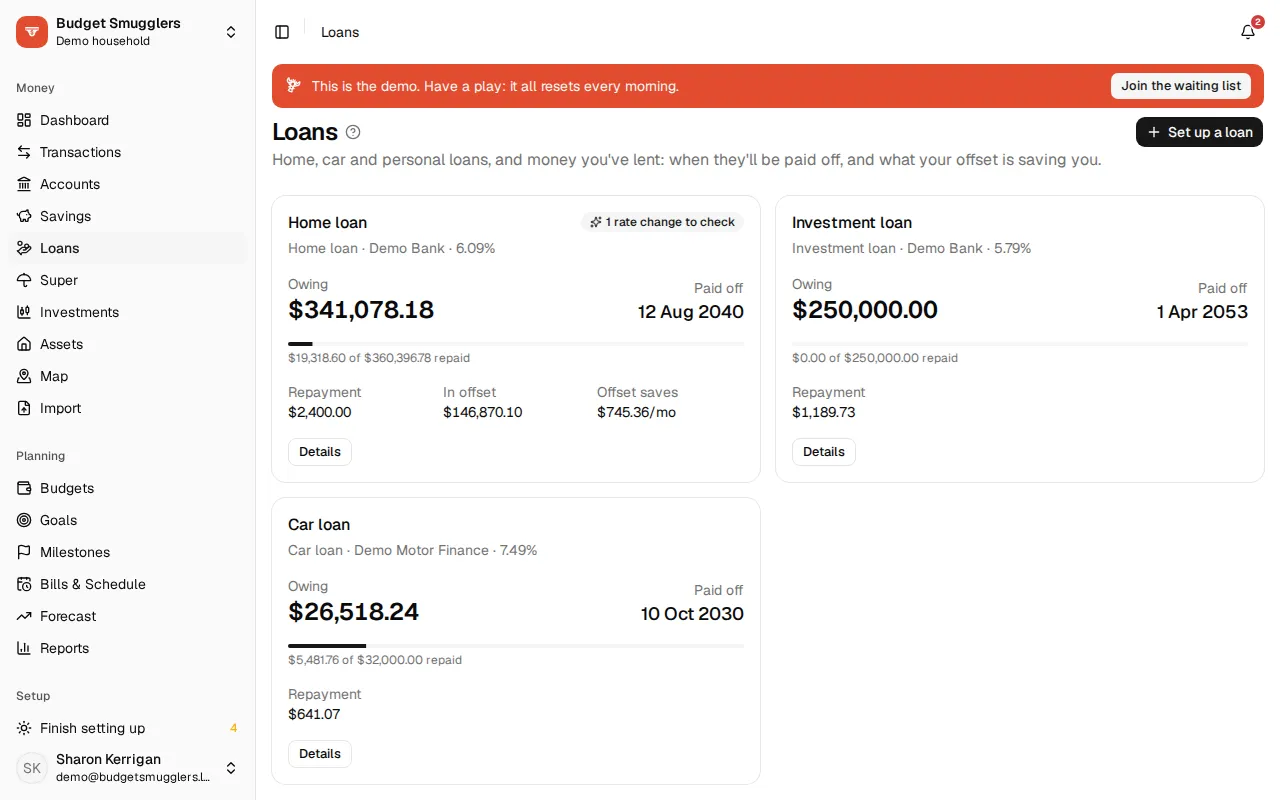
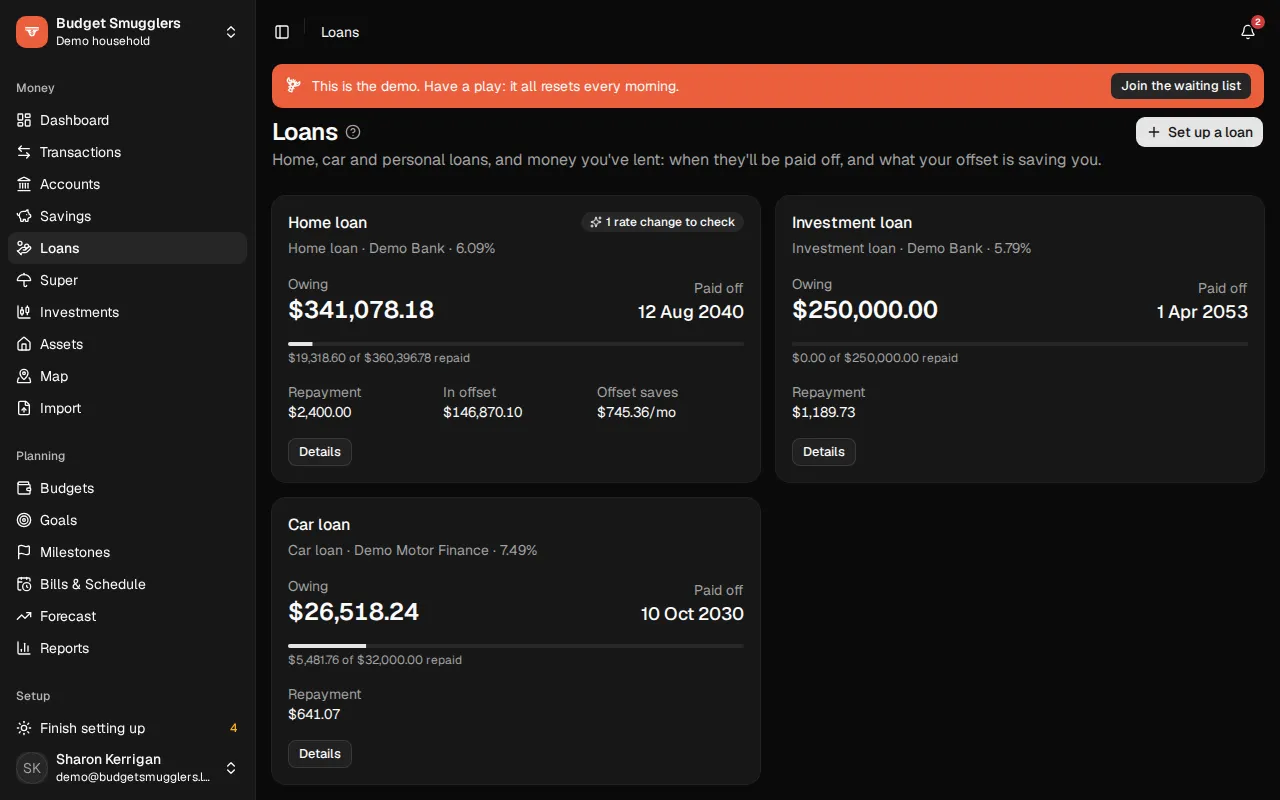
Loans tracks home, investment, car and personal loans, and money you’ve lent. For each one you see what’s owing, the payoff date, the interest still to pay and what your offset is saving you.
Setting up a loan#
A loan sits on top of a Loan or Mortgage account. Import the loan’s statement first, or add the account by hand on Accounts.
- Open Loans and choose Set up a loan.
- Pick the Loan account. We fill in what we can from its transactions: the amount borrowed, settlement date, repayments, the account they come from and a starting rate.
- Check it against your loan documents: Amount borrowed, Term (years), Settlement date, First repayment, First interest charge and Repayments (weekly, fortnightly or monthly).
- Enter a Starting rate (%), or leave it blank and we’ll work the rates out from the interest charged.
- Tick any Offset accounts.
- Choose Set up loan.
A few more settings are worth a look:
- Repaid from: the account your repayments come out of.
- Statements: I import this loan’s statements, or Estimate interest here if you don’t. When estimating, interest is worked out from your rate and posted to the loan account.
- When the rate changes: The bank recalculates my repayment, or I keep paying at least the same. Days before a new rate hits repayments sets the delay.
- Replaces bill: if you already have a bill for the repayment, pick it. The forecast uses the loan’s own repayments instead.
- Fees, balloon and fixed rates: monthly and annual fees, a balloon at the end, and the Rate after a fixed period (%).
To change any of it later, open the loan’s Setup tab and choose Edit.
An old loan#
Tick Already paid out (an old loan) when setting it up, and enter the Paid out on date and Payout amount. It goes straight to the Paid out list. Its history still counts in your net worth.
Offsets#
An offset account’s balance is taken off the loan balance before interest is worked out. Tick it under Offset accounts when you set up the loan or edit it.
- Savings, offset and everyday accounts in the same currency can be offsets.
- An account can only offset one loan.
- If an account only partly offsets, set its percentage.
The loan card shows how much is In offset and what the Offset saves each month. The Overview tab adds how much it saves over the life of the loan and how much sooner you’ll be done. On the Interest tab, Offset has saved is the total so far.
If an offset is an account you can’t see, it’s left out of your figures. A note says so, since the real numbers are better than shown.
Rates#
The Rates tab holds your rate history. Confirmed rates drive the projections and the expected interest each month.
To add one yourself, enter the date it started under From, the Rate (%) and the Type: Variable or Fixed. A fixed rate can have a Fixed until date. After that it reverts to variable, at your Rate after a fixed period if you set one.
Rate changes we spotted#
Banks don’t always tell you when the rate moves, so we look for it in your statements. There are two clues:
- Interest charged: each month’s interest divided by your daily balance less offsets gives the rate that was actually charged.
- Repayments: when the bank recalculates your repayment, the new amount points back to the rate it used. This comes a few weeks after the change.
What we find shows up under Rate changes we spotted, with a date, a rate, How sure (Very likely, Likely or A guess) and Why. Adjust the date or rate if needed, then Accept it or dismiss it. A badge on the loan card and the Rates tab tells you how many are waiting.
Suggestions are refreshed after each import. Choose Look again to check the statements now. A rate you’ve dismissed isn’t suggested again for the same date.
The Rate history chart shows your confirmed rate next to the Effective rate charged each month. Statements show the transaction date, not the date the bank counts, so a dollar or so either way is normal.
Interest checks#
The Interest tab checks each charge against your confirmed rates, on your actual daily balance less offsets. Each charge, checked lists what was charged, what was expected and the effective rate. If charges don’t add up, the rate probably changed: check the Rates tab.
Fixed, variable and interest-only#
The Timeline on the Overview tab shows the loan’s fixed and variable periods as a bar. Anything still to come is hatched. All your loans, at the bottom of the Loans page, puts every loan on one timeline. Drag it to move through time, and zoom with the buttons, Ctrl + scroll or a pinch.
Interest-only periods live on the Setup tab, under Interest-only periods. Add one with a From and To date (leave To empty for “the end”). While interest-only, repayments cover just the interest. Afterwards they’re recalculated over what’s left of the term. If your repayments matched the interest for a stretch, we’ll ask whether that was an interest-only period.
Payoff and extra repayments#
The Overview tab shows what’s owing, the current rate, the Paid off date and the interest still to pay. Balance over the life of the loan charts the actual balance so far, then the projection, and what it would be without your offset.
The payoff date needs a confirmed rate. Until there is one, the card says Needs a rate.
What if…#
Try a change and see when you’d be done:
- Extra each repayment, with optional From and Until dates.
- Offset balance: Stays where it is, Keeps its last 6 months’ trend or Emptied, plus Add to the offset each month.
- A Lump sum on a date.
- Interest rate: One change of so many percentage points from a date, or Over time, setting the rate in a few years’ time. A fixed rate holds until it ends.
- Keep paying today’s repayment if the minimum drops. When rates fall the bank lowers your minimum. Paying the old amount gets you out sooner.
The result shows the new payoff date, how much sooner or later that is, and the interest saved or added.
If your repayment changes and a linked bill still has the old amount, you’ll see a prompt to Update the bill.
Linked transactions#
The Transactions tab lists what belongs to the loan, sorted into Drawdown, Interest, Repayment, Extra repayment, Redraw, Fee, Adjustment and Payout.
- With imported statements, every row of the loan account is sorted automatically. Change What it is on any row we’ve got wrong.
- With estimated interest, link repayments from the account they come out of. Choose Link a payment and search for it. Rows marked Generated are worked out here.
- Payments from your other accounts that mention the loan’s account number are linked for you. Add the number to the loan account on Accounts.
- A rule can do it too: set Count it as paying (optional) to the loan.
Refinancing#
When a new loan pays out old ones, record a refinance so the history joins up.
- Set up the new loan, and make sure each old loan is set up too. An old one without statements can estimate its interest.
- On an old loan’s Setup tab, under Paying it out, choose Record a refinance.
- Enter the Settlement date, tick the loans Paid out with each payout amount and fees (from the discharge letter or settlement statement), and tick the new loan under Paid out by.
- Choose Record refinance.
The old loans close. Offsets, the repayment account and the bill move to the first new loan ticked. Each loan shows a “Refinanced from” or “Refinanced to” banner.
On the Overview tab, Whole history charts what you’ve owed across every loan in the chain. Saved so far and Saved over the loan compare against staying put at the old rates, after fees. They need the old loans’ rates confirmed.
Got it wrong? Open the old loan and choose Undo refinance. The old loans open again, and offsets, the repayment account and bill move back.
Money you lent#
Lent money to family, or borrowed from them? Track it like any other loan.
- Add a Loan account on Accounts. There’s no statement to import.
- Set it up on Loans. For Who owes who, choose I borrowed it or I lent it: it’s owed to me.
- Set Paid back into (or Repaid from) to the account the money moves through.
These loans estimate their interest here and have no offsets. Link each repayment from the Transactions tab, or set up a rule to do it. Money lent out again shows as a Further advance.
Sharing a loan with another pool#
Both sides can see the same loan, each from their own side. Only loans that estimate their interest here, with no offsets, can be shared.
On the loan’s Setup tab, under Share with the borrower (or lender):
- One of your own pools: pick it and choose Share.
- Someone else’s pool: choose Make a share link and send it. The link works once and expires in 7 days. They open it, sign in, pick a pool under Add it to and choose Add the loan.
It’s one loan: changes either of you make show up for both. Each side can name it their own way. To stop, choose Stop sharing. The other pool’s copy of the loan account goes, and payments they linked come unlinked. Your loan carries on.
Paying out and reopening#
When a loan is discharged in one go, open its Setup tab. Under Paying it out, enter Paid out on, the Payout amount and the Fees in that, then choose Pay out. The loan and its account close on that date, and the loan moves to the Paid out list. If interest was estimated, an adjustment makes up any gap between the estimate and the payout.
Choose Reopen to undo it.
Remove loan stops tracking it as a loan. The account and imported transactions stay. Rates, suggestions and links are deleted, and you can set it up again later.
Ask AI#
If you’ve connected an AI assistant, it can read your loans, run projections, look for rate changes and sort loan transactions.