Wealth
Super
Track super for everyone in your pool. Balances, contribution caps, whether employer super arrives on time, and where it's heading.
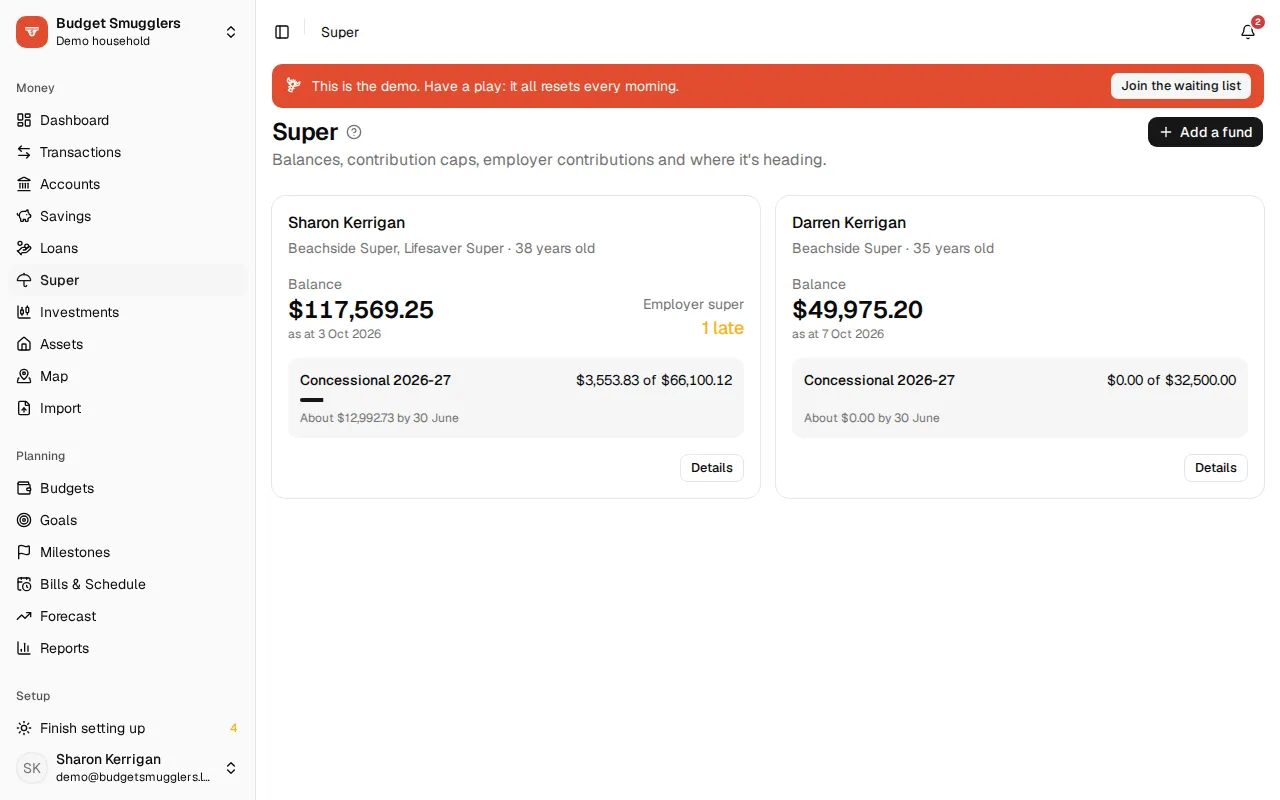
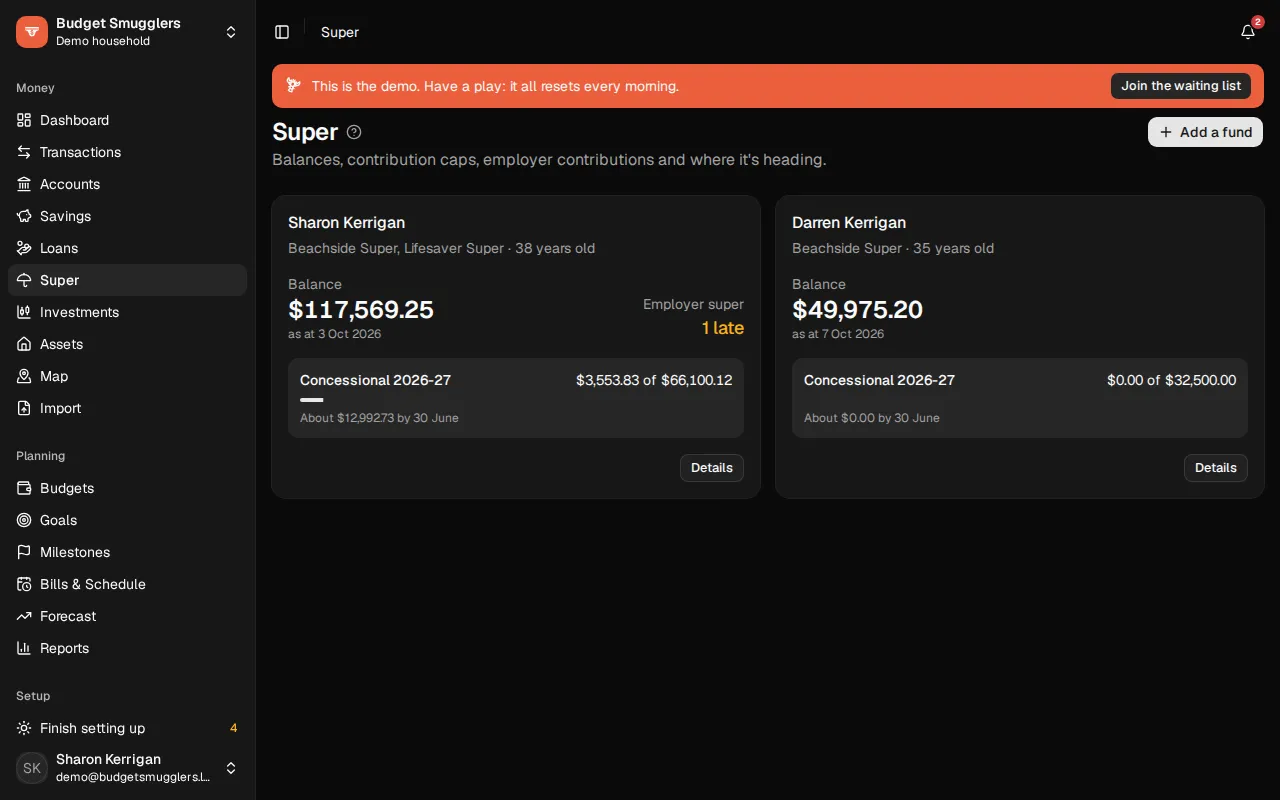
Super tracks the super of everyone in your pool. It shows what’s in each fund, what’s gone in this year against the caps, whether the employer is paying on time, and where it’s all heading.
It follows Australian super rules. For a fund somewhere else, choose the None (just track it) rules. Balances, returns and projections still work, without the caps or the employer check.
Setting up#
- On Accounts, add an account with the type Super / retirement. Make one account per fund.
- On that account, choose Set up super tracking. Pick Whose fund it is, name the Fund, and enter a Balance from a statement or the fund’s website.
- Open the person from Super, go to the Setup tab and choose Edit. Add their Date of birth, Salary a year and Salary sacrifice a year.
- Under Paid by, pick the pay their employer super follows. It’s an income from Bills & income.
You can also start from Super with Add a fund.
Someone with more than one fund gets them all under one person, because caps are per person. Use Add another fund on their Setup tab. People don’t need a login, so you can track a partner’s super too. Each one is one of the pool’s people, so their name and date of birth are shared.
If your employer pays more than the minimum, enter it as Employer rate %. If a fund doesn’t get employer contributions, turn off Employer contributions go here on that fund.
Getting data in#
There are three ways, and you can mix them.
- Balance updates. On the Transactions tab, choose Update balance now and then. The first one sets the starting balance. After that, whatever the fund’s transactions don’t explain is booked as returns. If older transactions turn up later, the returns are worked out again.
- Importing transactions. Most funds let you view or download your transactions. There’s no standard format, so on the Import page you map the columns once (date, description, amount, and the balance if there is one). The mapping is remembered. Macquarie Wrap exports QIF, which imports directly. If the file has a running balance, its last balance becomes a balance update. See importing files.
- The Sync extension. If your fund’s site has a download button, the Sync extension can click it for you, the same as for a bank.
What each transaction is#
Each transaction is tagged from its description: employer, salary sacrifice, contributions tax, fees, insurance, returns, rollovers and so on. Change any tag in the What it is column on the Transactions tab.
A transfer from one of your own accounts counts as Personal (after tax). Change it to Personal (deducted) once you’ve sent the fund a notice of intent to claim a deduction.
Super and your spending#
Super stays out of spending, income, budgets and categorising, because you can’t spend it. It still counts in net worth, and the net worth view can leave it out.
Contribution caps#
The Caps tab shows each financial year (1 July to 30 June) for one person, across all their funds.
- Concessional. Employer contributions, salary sacrifice and personal contributions you claim as a deduction. It shows what’s gone in, what’s Still to come from pay before 30 June, the Room left, and the contributions tax so far.
- Carry-forward. Unused concessional cap from the last five years can be used while your total super balance on the previous 30 June was under $500,000. For years before your history here, enter the total from your tax records (the ATO shows it in myGov).
- Non-concessional. After-tax money you put in yourself, and spouse contributions. Bring-forward of up to three years’ cap depends on your total balance and age.
- Division 293. A note when salary plus concessional contributions looks to be over $250,000, with roughly how much extra tax may apply.
The figures#
The caps and employer rates come from the ATO.
| Year | Employer rate | Concessional cap | Non-concessional cap |
|---|---|---|---|
| 2021-22 | 10% | $27,500 | $110,000 |
| 2022-23 | 10.5% | $27,500 | $110,000 |
| 2023-24 | 11% | $27,500 | $110,000 |
| 2024-25 | 11.5% | $30,000 | $120,000 |
| 2025-26 | 12% | $30,000 | $120,000 |
| 2026-27 | 12% | $32,500 | $130,000 |
Years after the last published one assume its figures, and the app says so.
Employer super#
From 1 July 2026, employers must pay super with each pay, and the fund must receive it within 7 business days of payday. Before then it was due quarterly, by the 28th of the month after each quarter.
The Employer tab checks each pay (or quarter) against what was owed. That’s 12% of salary, or your employer’s rate if it’s higher, plus any salary sacrifice. Each pay shows as On time, Late, Short, Missing or Not due yet. The tab needs a linked pay; until then it says Not set up.
Where it’s heading#
The Overview tab charts 30 June balances so far, then projects the balance to retirement. It never projects access before preservation age (60 for anyone born from 1 July 1964). Retire at is on the person’s details. Today’s dollars is on to start with, so inflation is taken out. Turn it off to see future dollars.
The projection uses:
- employer contributions on your salary, rising with wages
- salary sacrifice, less 15% contributions tax
- each fund’s fees and insurance
- the return you assume, after investment fees and tax
Fees and the return to assume#
Edit a fund on the Setup tab to set its Admin fee a year, Insurance a year, Other fees % and Return to assume, % a year. Leave the fees blank and projections use what the fund has been charging, read from its recent transactions at the latest rate. A fee that moves with the balance counts as a percentage; one that doesn’t counts as a flat fee.
The Returns table works out what each fund actually returned each year, after fees, and shows the recent average. It’s a good guide for the return to assume.
What if#
Try Extra salary sacrifice a year, Extra after-tax a year, a different Return % or a different Retire at. The what-if shows as a second line on the chart.
Projections are estimates, not financial advice.
Notifications#
You’ll get a notification when:
- contributions are heading over the concessional cap, or are over it
- an employer contribution hasn’t arrived by its due date
- a fund’s balance hasn’t been updated in about four months
To get these by email as well, turn on Email me about super contributions in Settings › Notifications.
Removing a fund or person#
On the Setup tab, Stop tracking removes a fund’s balance updates and tags. The account and its transactions stay. Remove takes the person and their funds out of Super, and you can set them up again later.